Here's a problem you'll hit the moment you make your second AI video clip.
You describe your character — say, a 30-year-old woman from Delhi with curly hair and a brown jacket. The AI draws her. Great. Then you make the next clip with the same description… and a slightly different woman shows up. A different nose. A different jaw. Maybe even a different jacket.
That's because AI video tools have no memory. Every clip starts from zero.
The fix is a character sheet.
Why you shouldn't skip this step+
So what is a character sheet?
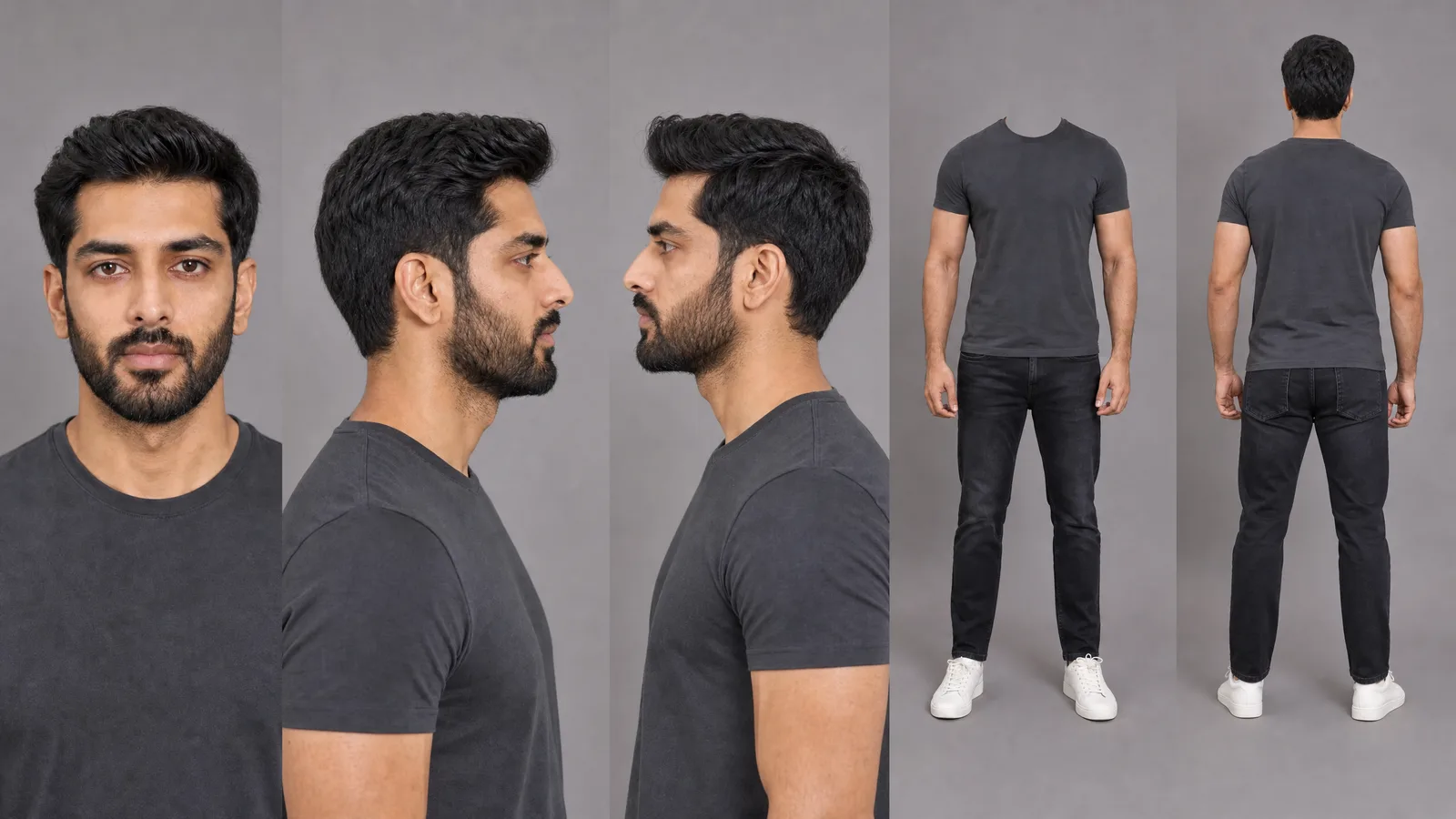
It's one image that shows your character from five angles — the face from the front and both sides, then the full body from the front and the back — all on a plain grey background.
You make it once. Then you attach it to every clip you generate. Now the AI isn't guessing what your character looks like. It's copying.
Think of it as casting an actor once, instead of hiring a new lookalike for every scene.
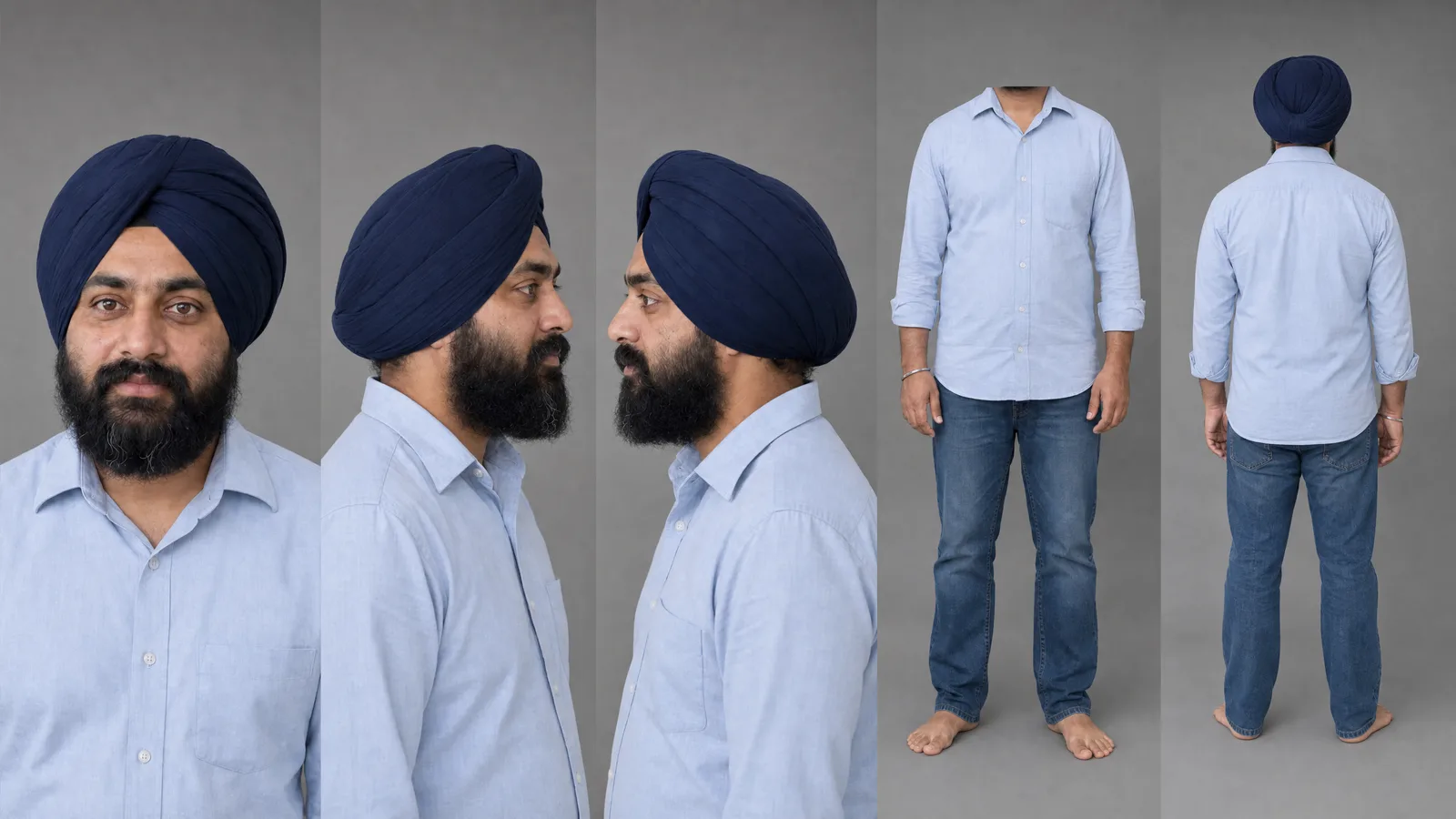
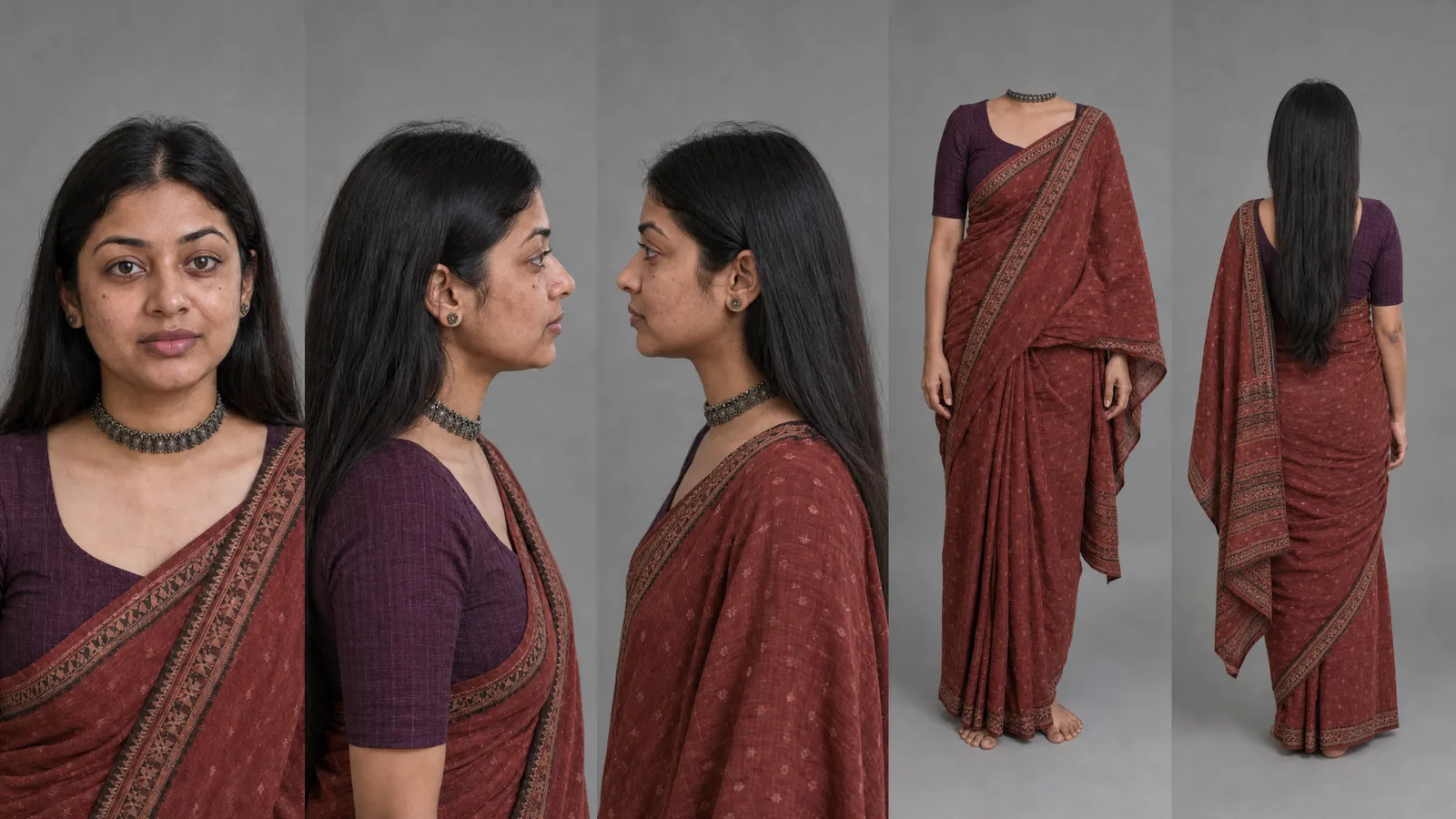
Tap an image to open it full size.
What goes on the sheet
Five views, side by side, left to right:
- Face close-up, straight on.
- Right side close-up — the face in profile.
- Left side close-up — the other profile.
- Full body from the front — with no head.
- Full body from the back — back of the head included.
That fourth panel looks odd, right? A body with no head.
It's on purpose. The face is already in the first three panels, big and sharp. If you add a tiny face again in the full-body shot, the AI gets a second, blurry version to copy from — and the face starts to drift. So we cut it off at the neck.
The last panel shows the back, head to feet. That's how the AI learns the back of the hair and the back of the clothes — so a shot from behind still looks like the same person.
Why grey, and not white?
Because of light.
On a white background, the AI brightens the whole image to match it. Skin washes out. Hair and edges lose detail. On a mid-grey background, the light stays even and true — so the face, skin tone and clothes come out the way they really look.
Just keep the same grey in every panel.
It works for any style
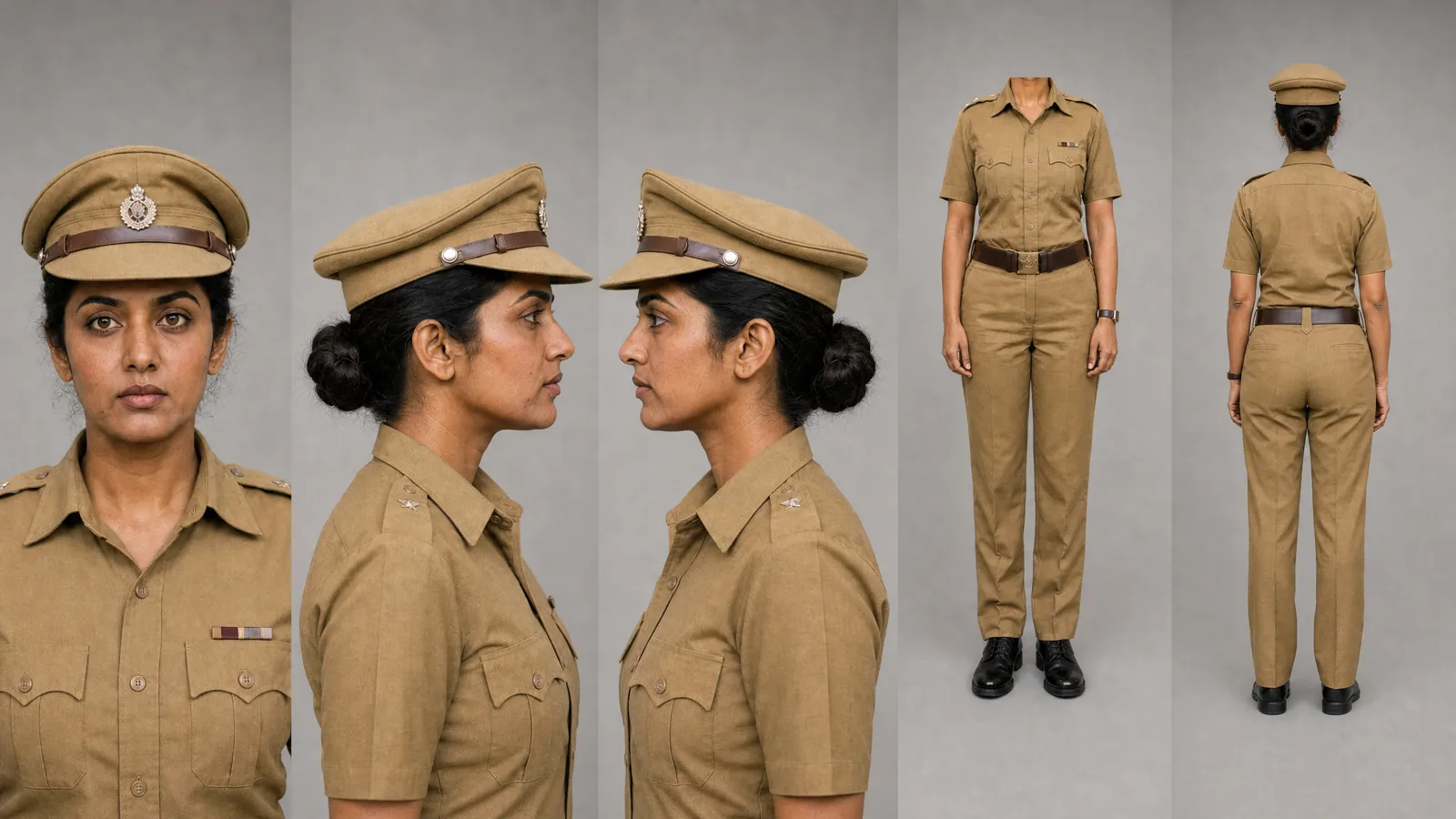
This isn't only for realistic people. The same five views work for 3D cartoons, anime, even a robot.
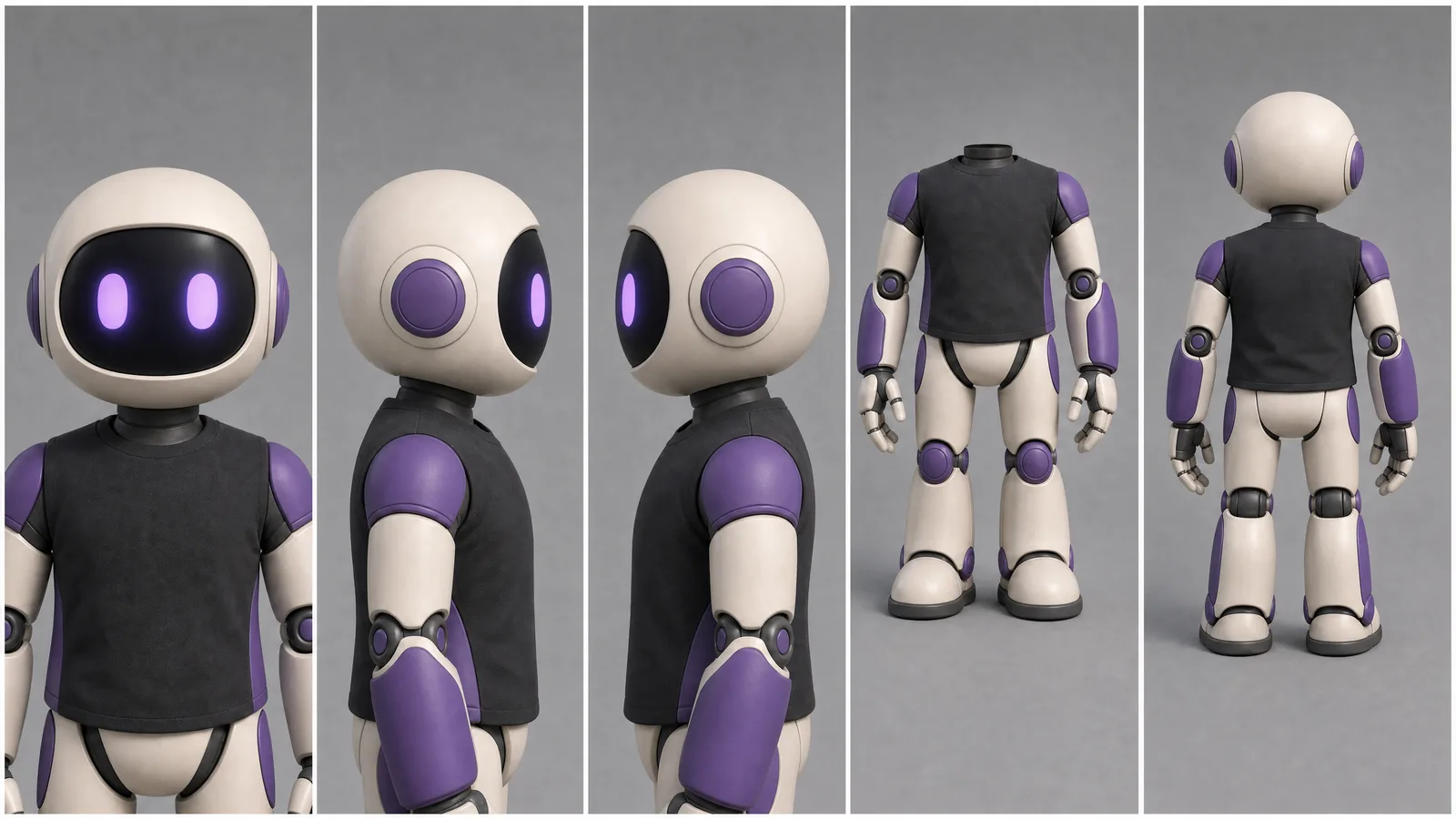
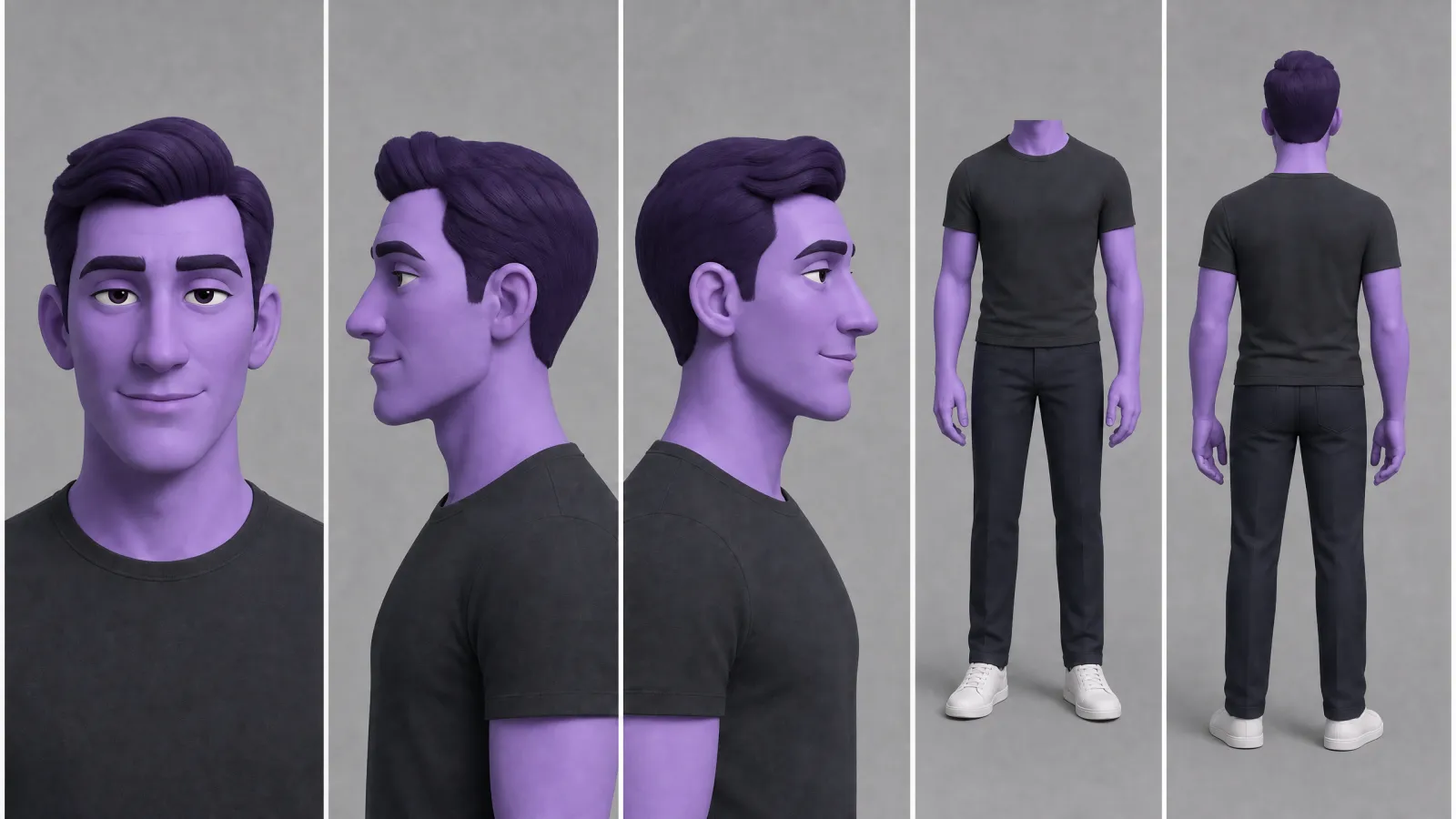
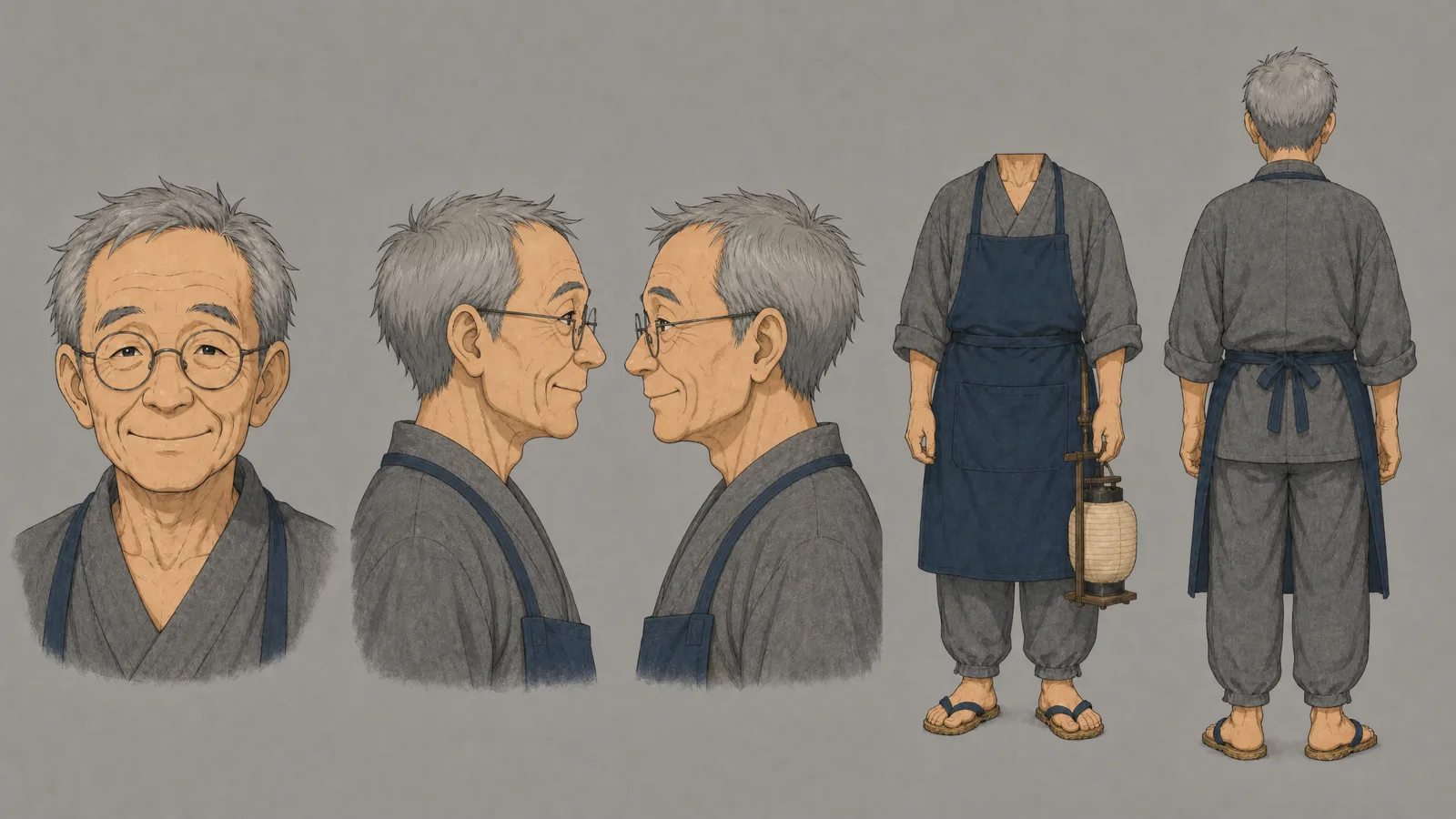
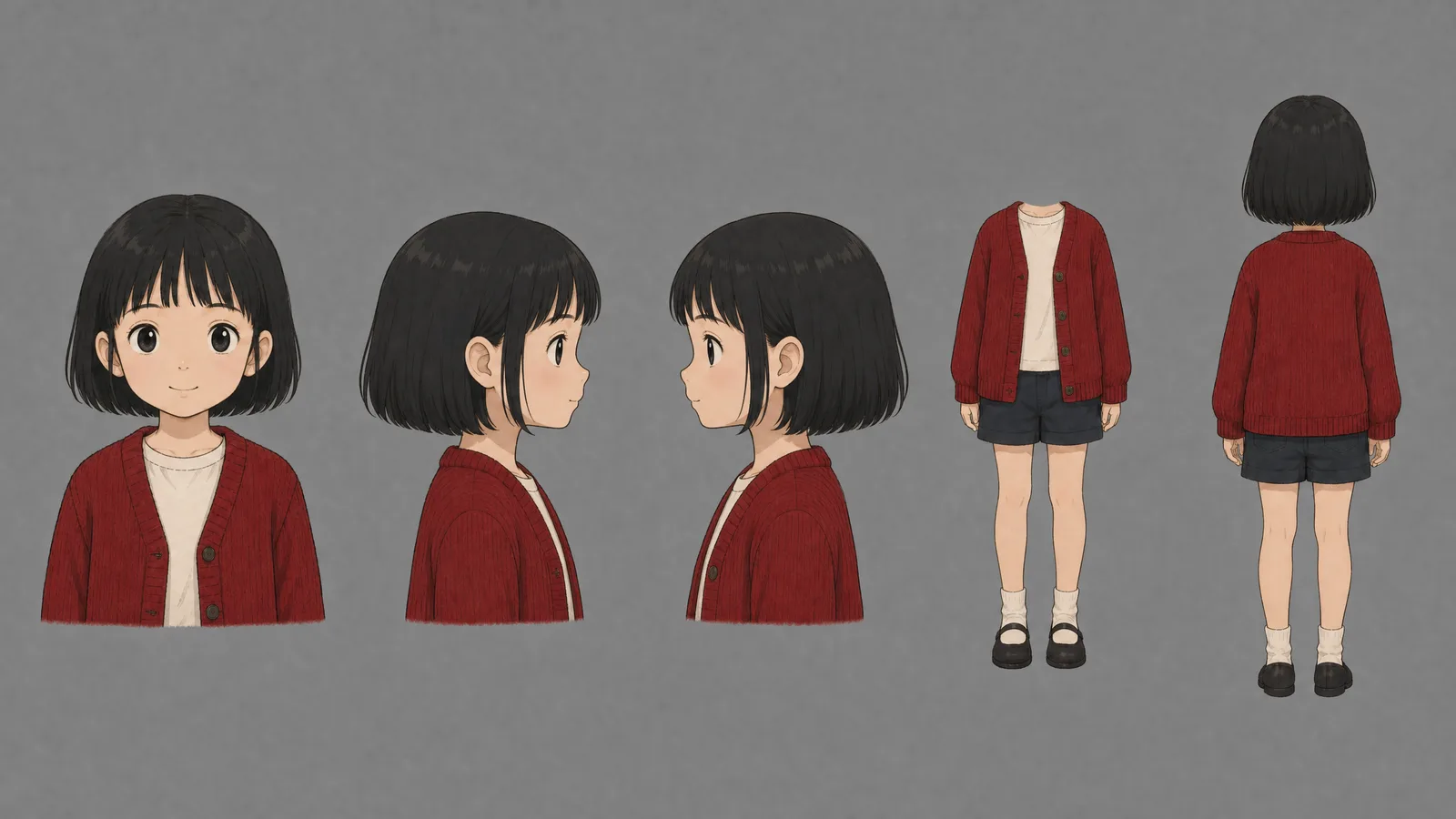
Tap an image to open it full size.
The only thing that changes is one word in the prompt. Swap "hyper-realistic" for your style — "3D animated" or "2D anime" — and delete the line about skin.
Copy the prompt
Here's the exact prompt. Copy it, paste it into the GPT Image 2 app on OpenDirector (or any image tool you like), and replace the pink bits with your character.
One wide 16:9 image. A hyper-realistic character sheet of [age] [where they are from, e.g. Punjabi from Delhi] [man / woman], [build], [hair], wearing [clothes].

EXACTLY FIVE panels in one horizontal row, left to right:
1) face close-up from the front
2) right side close-up — the face in full 90° profile, facing right
3) left side close-up — the face in full 90° profile, facing left
4) full body from the front with NO HEAD — cropped at the neck, shoulders down to the feet
5) full body from the BACK, head to feet — the back of the head and hair visible, no face

The same person in all five: same face, build, hair, clothes and colours.
Heads in panels 1, 2, 3 and 5 are fully inside the frame. Panel 4 shows no head at all. Panel 5 is seen from directly behind.
Plain mid-grey studio background, the SAME grey in every panel.
Natural [ethnicity] skin with visible pores and small imperfections.
Soft, even studio light, the same in every panel. 50mm lens, sharp focus.
No text, no labels, no logos.
One setting matters more than the rest: make the image 16:9. Five panels need a wide image. In a square one, each panel gets squeezed, and small details — eyes, hands, fabric — get lost.
Two quick tips before you hit generate.
Be specific about where your character is from. "A 30-year-old man" gets you a generic face. "A 30-year-old Punjabi man from Delhi" gets you a real one.
Want a polished, good-looking lead? Delete the line about pores and imperfections, and add "strikingly good-looking film lead".
Check it before you use it
Open the image at full size — not the thumbnail — and look for six things:
- Five panels, in order: front face, right side, left side, body front, body back.
- No head in panel 4.
- Panel 5 shows the back, not the front.
- No other head cut off at the edge.
- The same face, hair and clothes in every panel.
- The same grey everywhere.
If the same mistake shows up twice, don't keep adding words. Rewrite how you describe the character instead.
What if your character changes clothes?
Say your character wears a t-shirt in one scene and a blazer in the next. Don't write a fresh prompt for the blazer look — you'll get a different face.
Instead, attach the sheet you already approved, and ask for one change only. The face, hair and build carry over. Just the clothes change.
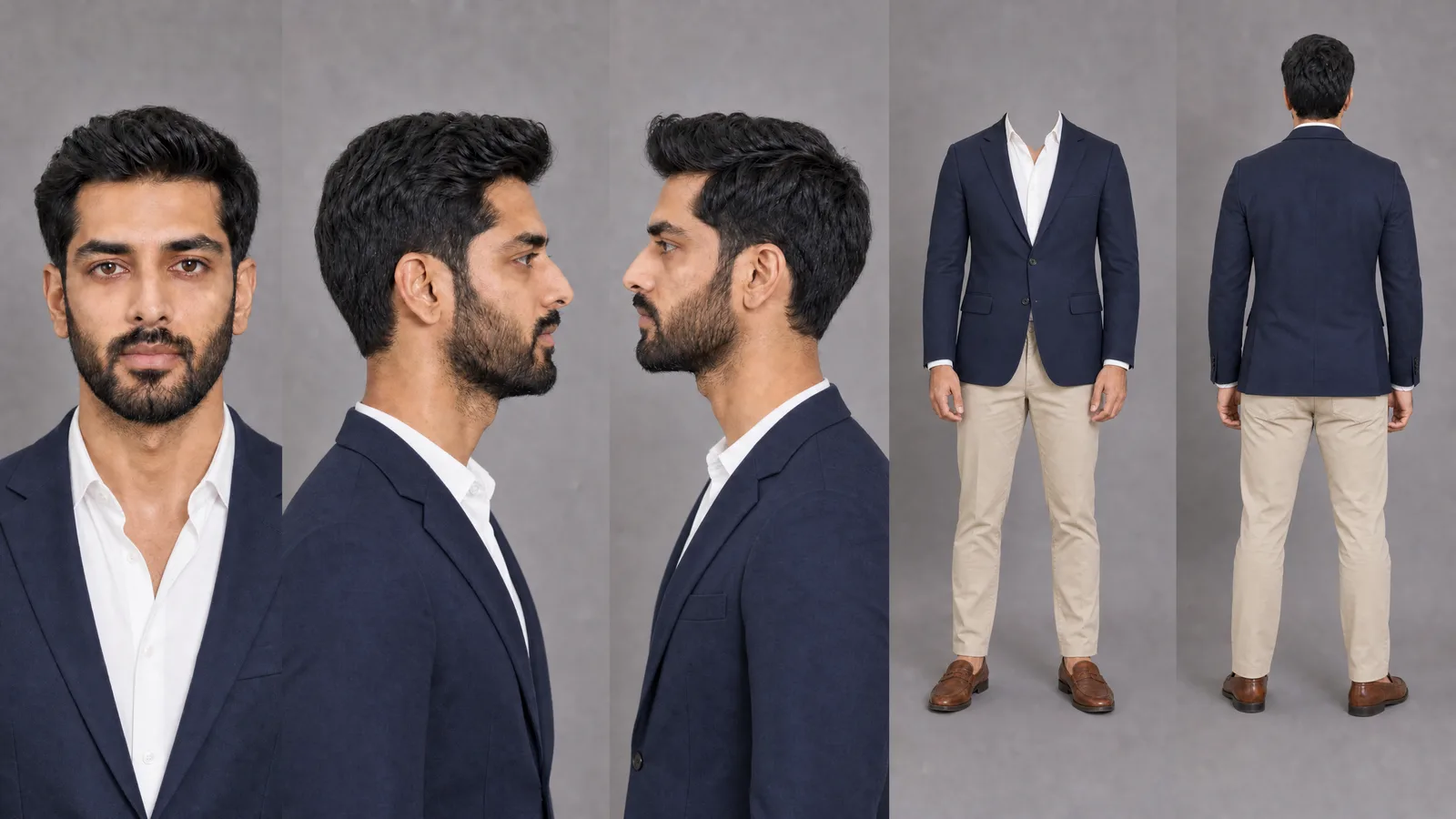
One wide 16:9 image. ONE REFERENCE IMAGE IS ATTACHED: the approved character sheet of [name].
Reproduce it EXACTLY — same person, same face, hair, build and skin tone, same five panels in the same order, same poses, same mid-grey background, same light.
ONE CHANGE ONLY: the character now wears [new outfit, e.g. a navy blazer over a white shirt, beige chinos and brown loafers].
Panel 4 still shows no head.
No text, no labels, no logos.
Here's what that looks like. We attached the sheet on the top, and asked for a navy blazer, a white shirt, beige chinos and brown loafers. That's all.
Same man. Same face. New clothes.
You can do the same for a new hairstyle or a pair of glasses. Just change that one line.
Quick answers
Can I use one sheet for a whole video?
Yes. Make one sheet per character and use it in every shot.
What if my character changes clothes?
Make a new sheet for each look by attaching the approved sheet and asking for the clothes change only. Never start a new look from text.
Why a grey background, not white?
Grey keeps the light balanced. On white, the AI brightens the image to match, so skin washes out and edges lose detail.
Does this work for animated or anime characters?
Yes. Use the same five views. Just swap "hyper-realistic" for your style, like "3D animated" or "2D anime".
How do I stop two characters looking alike?
Write how they differ: age, build, hair, glasses, type of clothes. Not just different colours.
Keep going