Here's something that catches almost everyone out.
You're making an ad for a real product. In the first clip, the pack looks fine. In the next one, the logo goes blurry and pixelated. By the third, the label is gibberish — letters that look like words but aren't — and the bottle has grown a different cap.
And then there's size. In one shot the tube fits neatly in her hand. In the next it's as big as her forearm. The product keeps changing size, because the AI has no idea how big it really is.
Sound familiar? Pixelated packaging, gibberish text on the label, and a product that keeps changing size — these are the three most common ways AI videos give away a fake product.
It isn't your product anymore. It's a lookalike. And your customers know exactly what your pack looks like.
This happens because the AI has never seen your product. It's guessing — and it guesses a little differently in every clip.
The fix comes in two parts. First, before you generate any video, you build a small set of reference images of your real pack. Then, with every video prompt, you send the right ones.
Why you shouldn't skip this step+
Part 1: build the references first
It all starts with real photos of your product — never a description. These are the photos to feed in:
- Front close-up — the front label, straight on.
- Top close-up — the lid or cap, from above.
- Ingredients — the back panel, with the text readable.
- Open — the pack opened, so the AI sees what's inside.
- In use — the product being used, e.g. a tablet in water.
- In hand — the product held in a hand, so its real size is clear.
For most products, these photos already exist — on your D2C store or your Amazon listing. If they don't, just click them on your phone. They don't need to be pretty; they need to be clear. Then upload them along with the prompts below.
From those photos, you make four reference images:
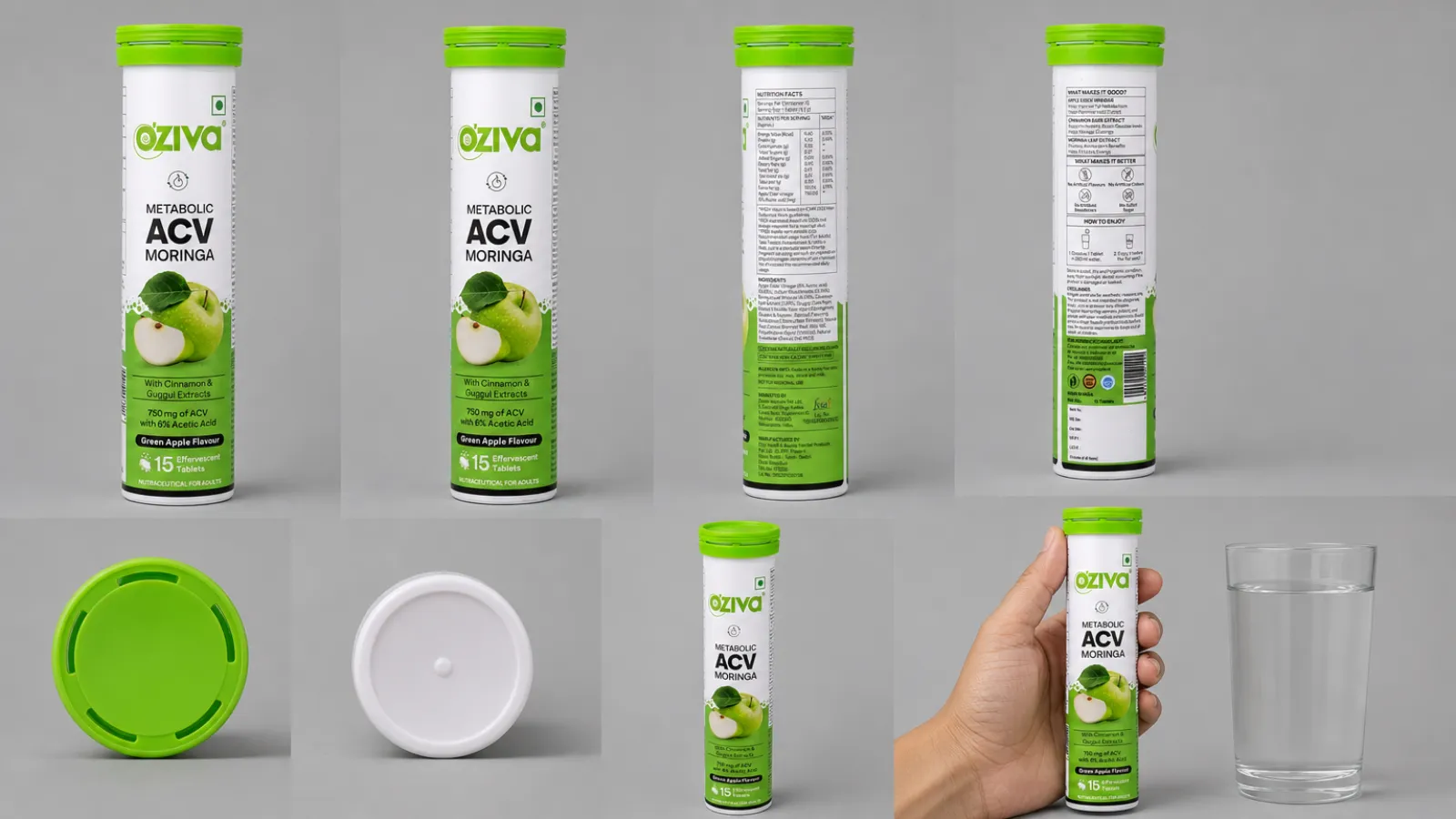
- A product sheet — every angle on one grey image, plus one scale frame. This teaches the AI the shape and the size.
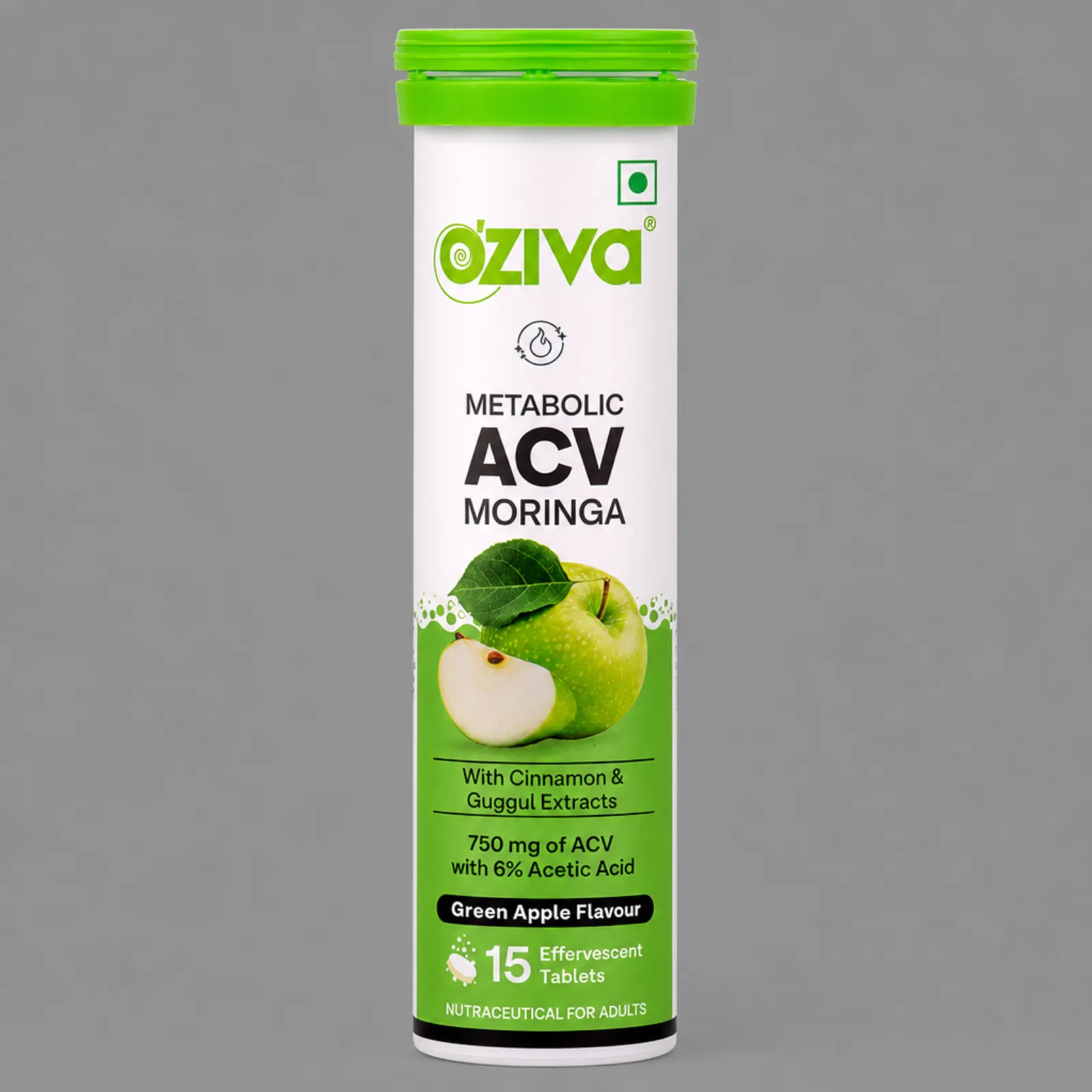
- A front close-up — the front label, big and readable.
- A back close-up — the ingredients and numbers, readable.
- An open or in-use shot — what it looks like opened or used, if your video shows that.
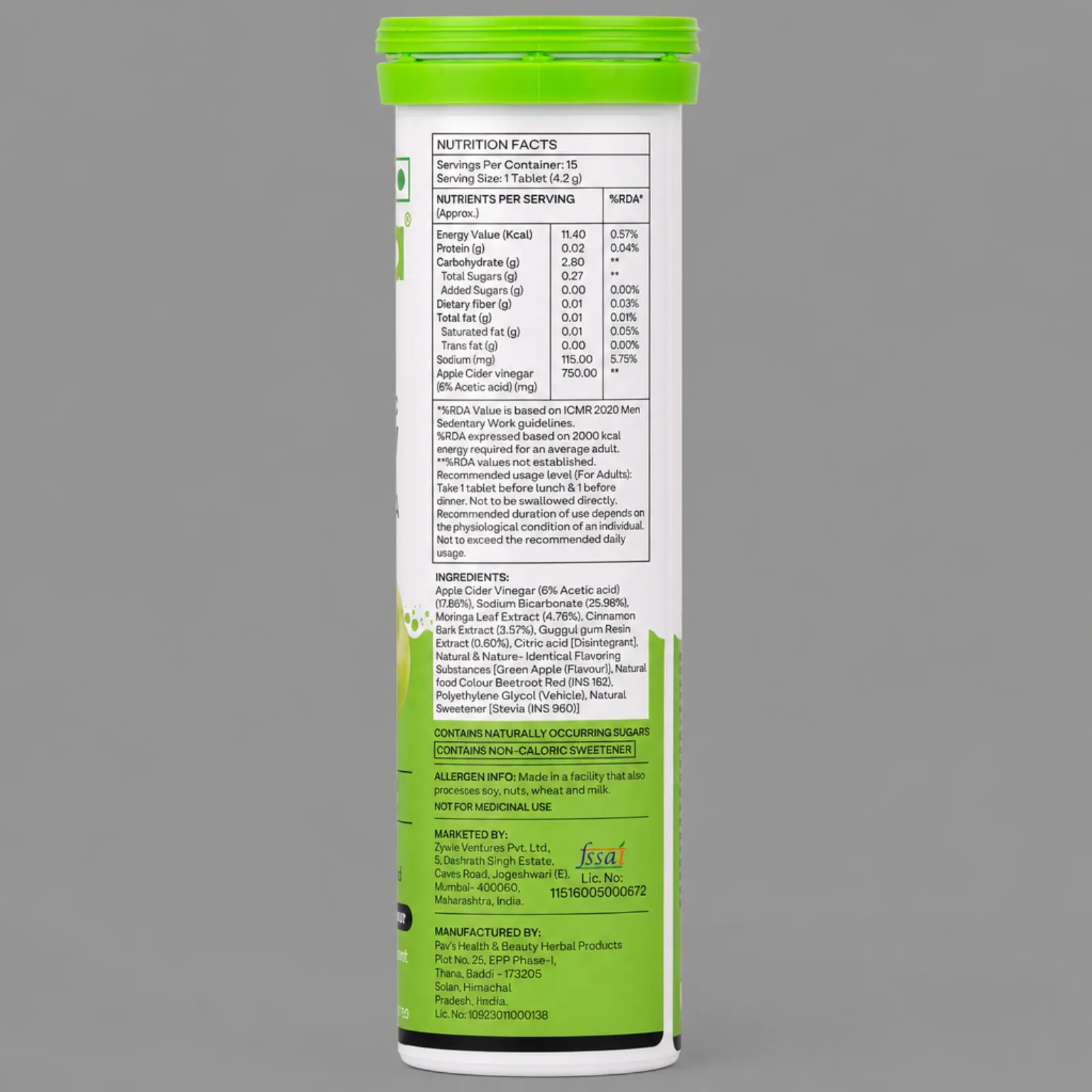
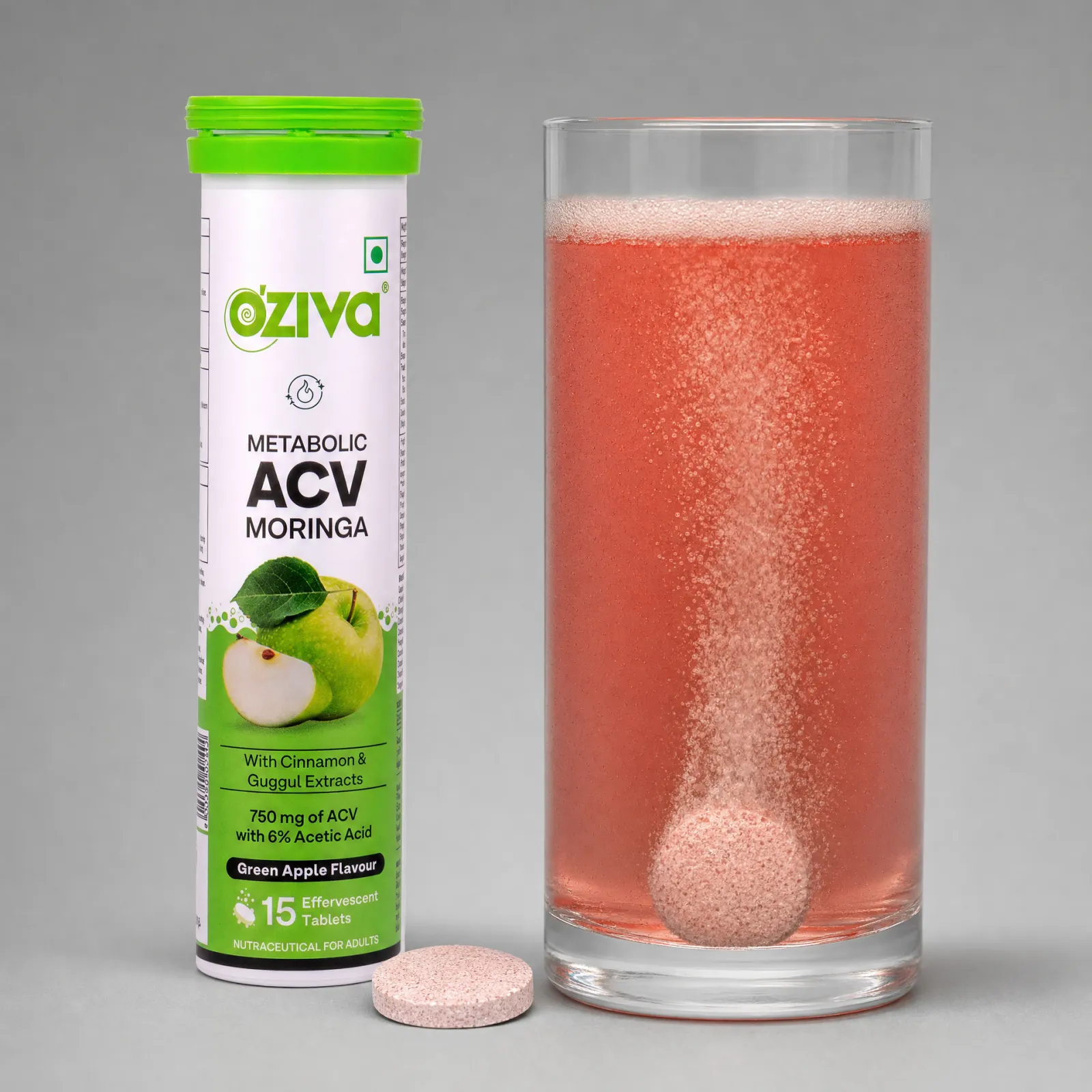
Tap an image to open it full size.
Look at the bottom row of our product sheet: the tube held in a hand, next to a glass. That's the scale frame. It shows the product next to something everyone knows the size of — a hand, a glass, a phone — so the AI stops guessing how big it is. It's the fix for a product that keeps changing size.
Why not just the product sheet? Because on the sheet, the label is tiny. And when text is tiny, the AI scrambles it. The close-ups give it the words at a size it can actually copy.
Why a grey background, and not white?
All four references sit on the same plain mid-grey background. That's on purpose — it's about light.
On a white background, the AI brightens the whole image to match it. The pack's colours wash out, and the thin edges of the label and the small print lose detail. On mid-grey, the light stays even and true — so the colours, the logo and the text come out the way they really look.
So keep the same grey in every reference, and never swap it for white.
Part 2: send the right images with every video prompt
This is the part most people skip. Whenever the product appears in a clip, attach its references to that clip's prompt.
But not all of them, every time. Send only what that shot needs:
- Product in the shot, label doesn't matter → the product sheet.
- Held up, front facing the camera → the product sheet + the front close-up.
- Turned around, showing the back → the product sheet + the back close-up.
- Being opened or used → the product sheet + the open or in-use shot.
Why not just send everything? Because the AI tries to use every image you give it. Send the open jar for a shot where the jar should be closed, and you might get a half-open lid. Send the back label for a front-facing shot, and the two labels can blend.
So the product sheet goes with every product shot. The rest only go when the shot calls for them.
For example, the prompt for a shot where she holds the tube up to the camera might read:
She holds the tube up to the camera and smiles. The product is the exact pack in @Image1 (the product sheet) — keep its shape, colours and label exactly. The front label is shown in @Image2 (the front close-up) — every word must stay readable and correct. Do not redesign or relabel the pack.
Notice how each image is named by its job — "@Image1 is the product sheet". If you attach images without saying what each one is, the AI can mix them up.
Check the in-use shot against a real photo
This one caught us out. Our first in-use image showed a green tablet in green water. The flavour is green apple, so the AI guessed green.
The real tablet is pink. And the water turns pink too. We only noticed because we checked the brand's own photo. We rebuilt it, and now it matches.
So always compare the in-use shot with a real photo — the colour, the texture and the size.
Copy the reference prompts
Use these to build the references in Part 1. They're the exact prompts OpenDirector's product sheet builder runs. Attach your real product photos to each one, paste it into the GPT Image 2 app on OpenDirector (or any image tool you like), and replace the pink bits.
One product sheet of the [brand] [product name] on a flat even mid-grey seamless background with soft even studio light and no cast shadows. Reproduce the product's identity, shape, colours, label artwork and label text EXACTLY from the attached reference images; do not restyle, recolour, relabel or invent any text. Layout, left to right and top to bottom: a rotation strip of four views side by side — front, three-quarter front, side, back — then a top-down view, a base/underside view, a three-quarter hero view, and finally a SCALE REFERENCE panel: the product held upright in an adult human hand, front facing the camera, with an ordinary clear drinking glass standing beside it on the same surface, so the product's real size reads against both the hand and the glass. Every view of the product at the same scale; the hand and glass at true life size relative to it. No text, labels, numbers, captions, borders, logos or watermarks anywhere except what is printed on the product itself.
One large straight-on FRONT view of the [brand] [product name] filling the frame, on a flat even mid-grey seamless background, soft even studio light. Reproduce ALL front artwork, brand mark and label text EXACTLY and legibly from the attached reference images — same words, same typography, same colours, correctly oriented. Nothing added, nothing invented, no extra text, no watermark.
One large straight-on BACK view of the [brand] [product name] filling the frame — the ingredient / information panel side — on a flat even mid-grey seamless background, soft even studio light. Reproduce the ingredient list, any table or numbers, and ALL back-panel text EXACTLY and legibly from the attached reference images, correctly oriented. If the references show no back panel, render the back of the pack plainly with the same colours and materials and NO invented text. No watermark.
The [brand] [product name] shown in its IN-USE / OPEN state, on a flat even mid-grey seamless background with soft even studio light. The product's identity, shape, colours and label must match the attached reference images EXACTLY — do not restyle or relabel. Follow this specification for what to show: [what it looks like in use — e.g. one pink speckled tablet dissolving in a clear glass of water, the water turning a translucent coral pink]. Make the contents themselves the point of the image: their real colour, texture, opacity and, for anything dissolved in water, the exact way the water's colour and clarity change. Keep the closed pack or container visible in frame for context. One clean composition, no text, captions, borders, logos or watermarks except what is printed on the product.
Check it before you use it
Put each reference next to a photo of the real product, and check:
- The logo, colours and shape match.
- Every word is spelled exactly as on the pack.
- The size looks right in the scale frame, next to the hand.
- The front and back text is sharp enough to read.
- The in-use shot matches a real photo.
One last thing. Only the product you're selling gets this treatment. Everything else on screen — a mug, a phone, a bag — is a prop, and props go on a prop sheet.
Quick answers
Why does my product packaging distort in AI videos?
The AI has never seen your product, so it guesses the pack in every clip. Give it references built from real photos, and attach them to every video prompt where the product appears.
Why does my product keep changing size in AI videos?
The AI doesn't know how big it is. Add a scale frame to your product sheet — the product in a hand or next to an everyday object — and send the sheet with every product shot.
Do I send all the references with every video prompt?
No. Send the product sheet whenever the product is in the shot. Add the front close-up, back close-up or in-use shot only when that shot needs it.
Can I make product images from a description?
No. The AI will invent a lookalike. Always start from real photos.
Why a grey background, not white?
Grey keeps the light balanced. On white, the AI brightens the image to match, so the pack's colours wash out and small label text loses detail.
What photos do I need, and where do I get them?
A front close-up, a top close-up, the ingredients panel, the pack open, the product in use, and the product in a hand. Most are already on your D2C store or Amazon listing; if not, click them on your phone and upload them with the prompts.
Keep going